How Computers Work: The 4-Step Cycle Explained
Every computer follows the same 4-step cycle: input, process, store, output. Here's exactly how your PC turns keystrokes into action.
All computer guides and articles, organised by topic.

Every computer follows the same 4-step cycle: input, process, store, output. Here's exactly how your PC turns keystrokes into action.

Discover every major motherboard part and what it does: CPU socket, chipset, RAM slots, PCIe slots, SATA ports, M.2 connector, power delivery, BIOS chip, and more.

BIOS runs before Windows even loads. It tests your hardware, finds your boot drive, and lets you tweak settings. Here's what it actually does.
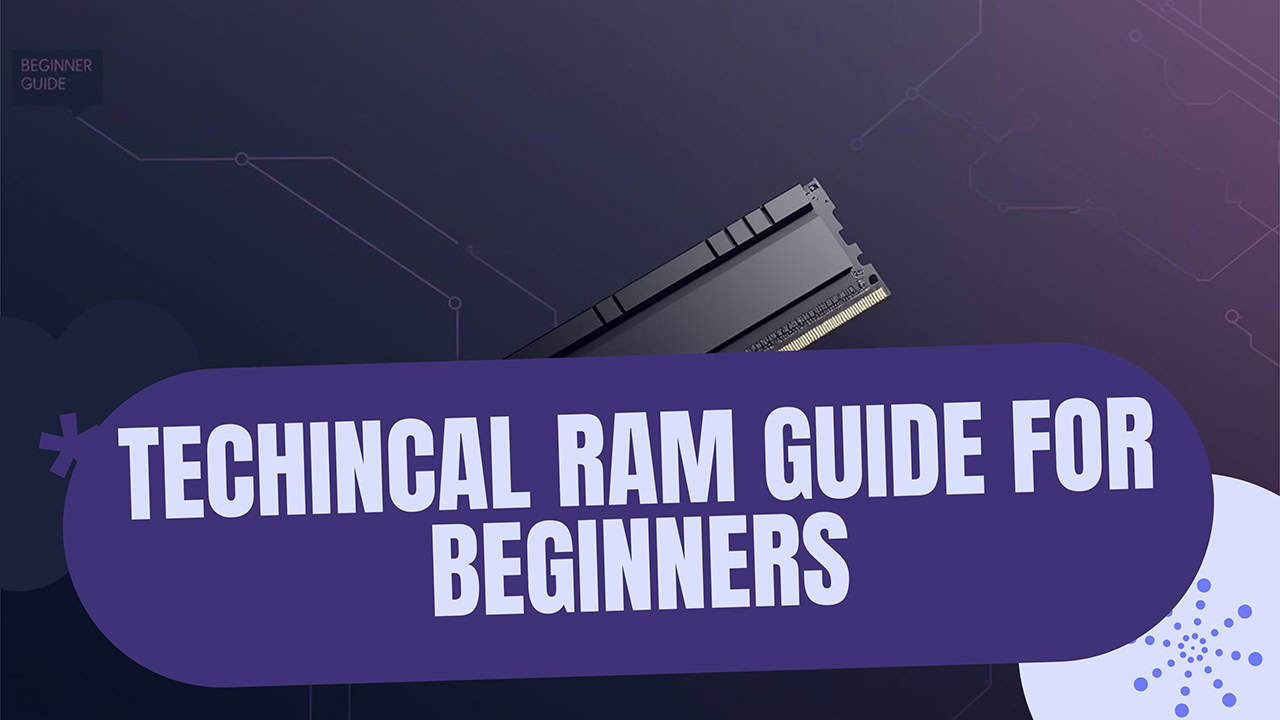
A RAM stick has more parts than you'd think: memory chips, PCB, SPD chip, and heatsink. See what each does and why it matters for speed.

No built-in WiFi? USB adapters, PCIe cards, or motherboard upgrades all work. Here's the fastest way to get your gaming PC online wirelessly.

Gaming laptops drain fast, but these settings can double your battery life. Adjust power modes, brightness, and background apps to game longer.

Some fan noise is normal, but a loud gaming PC could mean dust buildup, bad fans, or overheating. Here's how to tell the difference.

Most gaming PCs need 500-750W, but high-end builds with RTX 4090s need 850W+. Here's how to calculate your exact power supply needs.
If your gaming PC won't connect to your TV, this guide covers the most common causes and step-by-step fixes to get your display working again.

No, but your games will load 3-5x slower without one. SSDs cut load times dramatically and some newer games actually require them.

High ping in games is caused by network distance, WiFi interference, bandwidth congestion, and outdated hardware. Here's what raises your latency and how to lower it.

Four RAM sticks are not slower than two when using the same total amount and speed. Performance depends on your motherboard quality.

Match your CPU socket to the motherboard, verify RAM type, check power supply wattage, and confirm your graphics card fits in the case.

Diagnose processor vs motherboard failures with systematic testing. Check power, test CPU stress, examine connections for accurate diagnosis.

No, BSOD crashes won't damage your PC. They protect your hardware by shutting down Windows before real damage from overheating or failing RAM occurs.

Yes, solid state drives develop bad sectors as memory cells wear out. Your drive automatically replaces failed cells with spare blocks.

Use a pencil eraser to gently rub dirt and oxidation off the gold pins, wipe with a lint-free cloth, and blow away debris with compressed air.

Running at 100% is normal for brief tasks. Prolonged high usage only causes problems if your cooling system can't control the heat it creates.

A processor with heat damage shows crashes, slowdowns, throttling, and boot failures. Monitor temps and run stress tests to confirm the damage.

CPUs generate heat as transistors switch, turning power into thermal energy. See typical wattage and normal temperature ranges.

LGA has pins on the motherboard, PGA puts them on the CPU, and BGA is soldered permanently. Know the difference before upgrading your processor.

Use positive air pressure with filtered intake fans, keep your PC off the floor, and clean filters monthly. These steps block most dust from entering.

Internal drives are faster for apps and games. External drives are portable for backups. See which fits your storage needs and budget.

SSDs lose 40-50% write speed above 75% capacity because flash memory cannot overwrite data directly and must erase entire blocks first.

Most GPUs overheat from dust buildup, poor case airflow, or old thermal paste. Safe gaming temps are 149-181F. Learn how to diagnose and fix the problem.

Remove your graphics card cooler, clean old paste with thermal remover, apply fresh compound, and reassemble. Expect 18-36°F (10-20°C) cooler temps.

The CPU is your computer's brain that handles every click, app, and game. Learn how processors work and what makes some faster than others.

Expect 5-8 years of use with proper care, though high-end systems can reach 10 years. Learn which parts fail first and how to extend your PC's life.
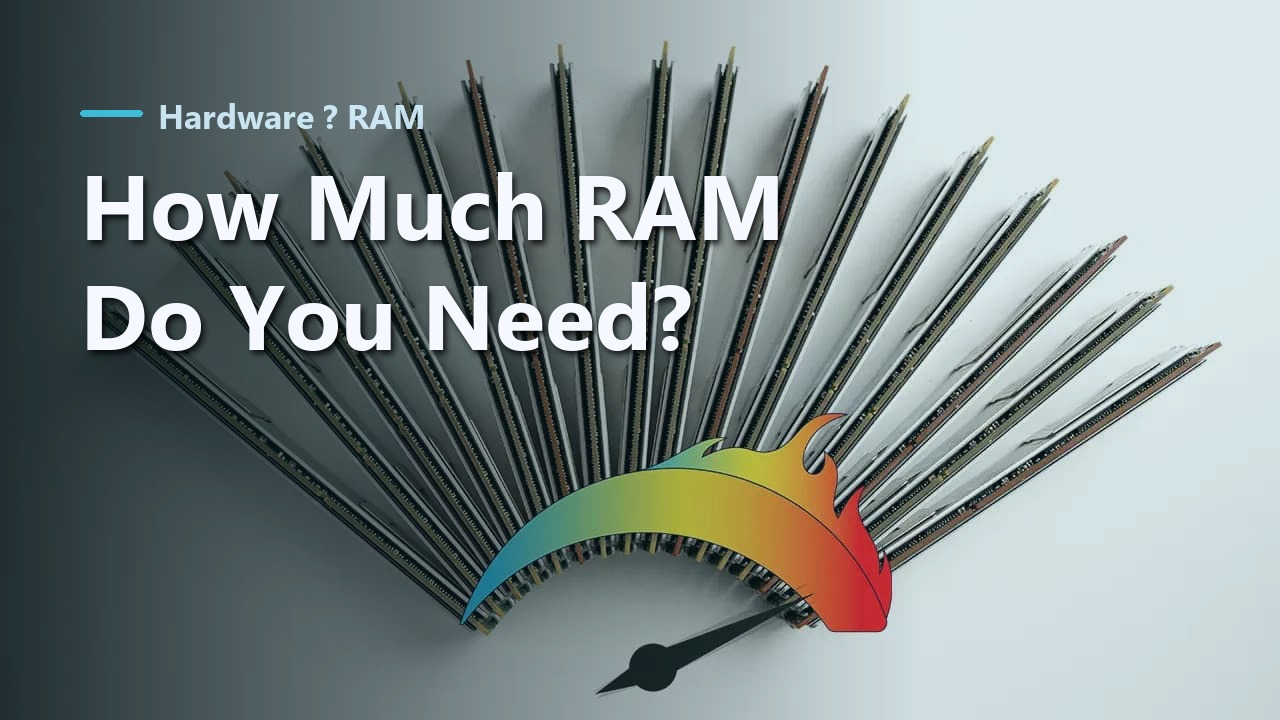
Most people need 16GB of RAM for everyday use and gaming. 8GB handles basic tasks, while 32GB or more suits video editing, 3D work, and heavy multitasking.

Fan curves tell your PC fans when to speed up or slow down based on temperature. Set them up in BIOS or with free software for quieter cooling.

Use MSI Afterburner to control your GPU fans. Set 60-70% for cooler temps, or create custom curves that adjust speed based on temperature.

Press the power button on the front of your computer case. First check that all cables are connected and the PSU switch is set to ON.

A graphics card contains a GPU chip, video memory, cooling system, power delivery, and display ports that work together to create images on your screen.

Intel CPUs use LGA sockets where pins live in the motherboard, not the chip. This protects your processor from bent pin damage during handling.

Confirm your CPU works by checking boot behavior, Task Manager usage, and HWMonitor temps, plus quick tests for stability.

Fans may cycle every 10-15 minutes in light use and spin up around 140-158 F. Constant idle fan noise can signal cooling issues.

Cool down an overheating laptop with one Windows setting. Lower CPU to 75%, clean vents, and use these 8 methods to keep it running cool.

Low GPU usage usually means your CPU can't keep up, VSync is capping frames, or drivers need updating. Here's how to fix it and boost performance.

Mid towers fit most builds, cost less, and save space. Full towers are for oversized boards, lots of drives, or custom cooling.

The CR2032 coin cell powers a chip that saves your BIOS settings and keeps the clock running when the computer is off.

Yes, old hard drives work with new motherboards. Expect driver conflicts and Windows issues. SATA connects directly, IDE needs an adapter.
Keep your PC running fast with weekly disk cleanup, monthly updates, regular virus scans, and dust removal every few months. Simple steps anyone can do.

Clean dust from fans, replace thermal paste, and improve case airflow to fix an overheating gaming PC. These steps stop crashes and protect your parts.

A PSU converts wall outlet electricity into the voltages your PC needs. Learn about wattage, efficiency ratings, modularity, and protection features.

PS/2 ports provide guaranteed BIOS access, zero polling latency, and work when USB fails. Essential for IT pros, gamers, and secure environments.

A quality PSU lasts 5-10 years, while budget units may fail in 3-5 years. Discover failure warning signs and proven ways to extend your unit's lifespan.
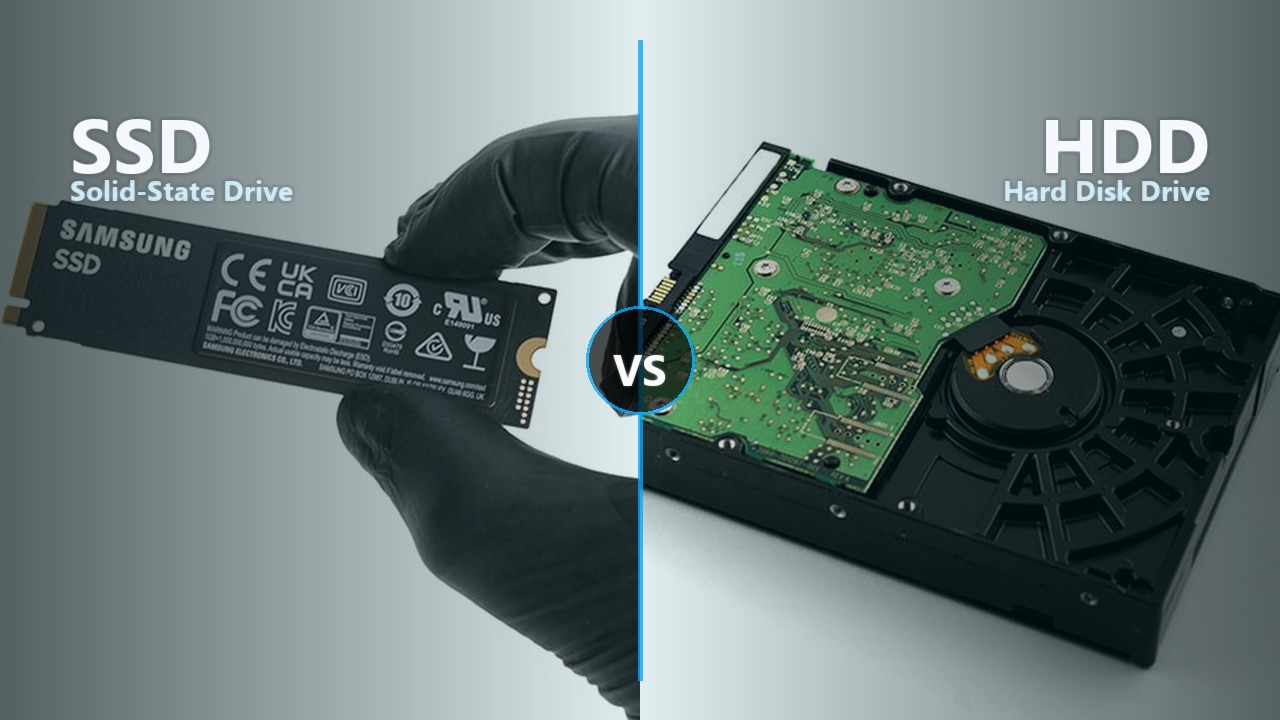
SSDs are 5-20x faster with no moving parts. HDDs store more data for less money. Compare speed, price, durability, and noise to pick the right drive.

Keep it sealed at 59-77°F (15-25°C) with humidity below 50%. Metal types last 3-5 years, ceramic 2-3 years, and carbon types 3-4 years unopened.

Every 2-5 years for office PCs, 2-3 years for gaming, and 1-2 years for overclocked systems. Replace sooner if temps rise 18°F (10°C) above normal.

Your CPU or GPU automatically slows down to prevent overheating. Learn why it happens, how to detect it, and proven fixes to restore full performance.

Graphics cards have dedicated VRAM to store textures and frames near the GPU, providing 10 to 18 times faster access than system RAM.

Learn why RAM always comes in powers of 2. Binary addressing doubles capacity per bit, leading to standard sizes like 4GB, 8GB, 16GB, and 32GB.

Laptop batteries lose 20% capacity after 300-500 charge cycles due to lithium-ion chemistry limits, heat buildup, and chemical aging inside the cells.
Computers slow down due to software bloat, full storage drives, and hardware wear. Most slowdowns are fixable with cleanup and simple upgrades.

Three main keyboard types exist: membrane (quiet, affordable), mechanical (durable, tactile), and scissor (slim, portable). Learn which fits your needs.

Onboard audio is fine for most PCs, but a sound card helps if you game or use quality headphones and want cleaner audio.

Use Microsoft's free Media Creation Tool to create a bootable USB installer in about 30 minutes. Works for Windows 10 and 11 on any PC.

Your WiFi adapter, WLAN service, or Airplane mode is likely blocking network detection. Here's how to fix each cause.
