Computer Information on Hardware and Software
Computer Information on Hardware and Software should help you understand your PC, solve problems, plan upgrades, and choose the right next step. Explore practical guides, focused calculators, and free Windows software built from real-world IT experience.
Plan and improve your PC
Choose which part to upgrade first, size a power supply, and check how well your parts work together. More tools help you tune the PC you already have, from airflow to RAM settings.
PC Upgrade Checker
See which upgrade adds the most frames and whether it fits your board and power supply.
OPEN TOOL →PSU Wattage Calculator
Find the right power supply size for your PC build, with headroom done properly.
OPEN TOOL →PC Bottleneck Calculator
Check CPU and GPU balance before you plan your next upgrade.
OPEN TOOL →Go further with Computer Info Bits Pro
One subscription gives you all 8 Pro features, plus every new premium tool we add.
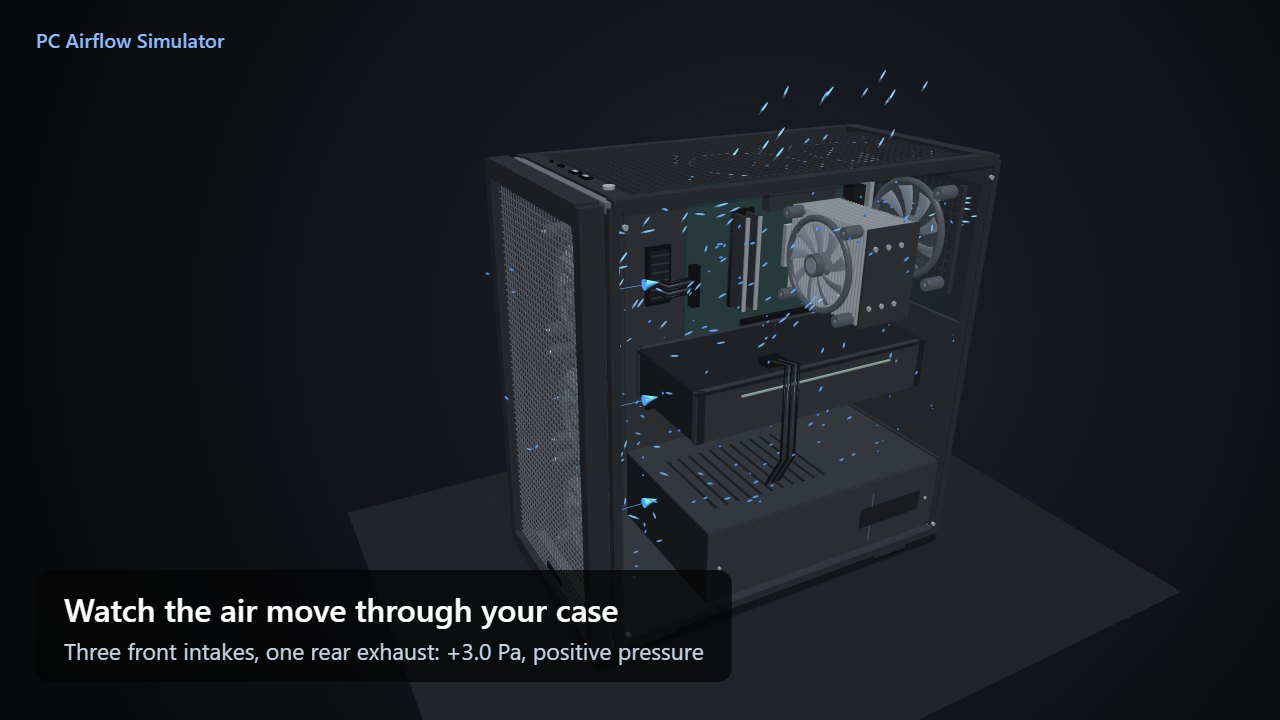
3D PC Airflow Simulator
Build your own fan layout in cases from Mini-ITX to full towers, or start from a ready-made one. See case pressure and the air reaching your graphics card, then compare and share layouts.
Calculator reports
Print results from 7 of our calculators, or save them as PDFs. Add your notes, business name, and logo.
FPS Game Planner
Add up to 12 games and a target frame rate, and see the best settings that hold it in each one. Add a second PC to see what an upgrade changes.
Bill Cutter
Compare your internet plan with up to 3 offers over two years, including promo prices that end and rental fees. See the cheapest plan that still covers your home, and get a call script.
Multi-PC UPS Planner
Size battery backup for several PCs, monitors, consoles, and network gear on one UPS or split across three, then print every unit in one report.
PC Reporter Pro
Our free Windows app checks your hardware, temperatures, drives, and drivers. Pro finds what your repeat crashes, freezes, and restarts have in common, and puts your logo on reports.
RAM Optimizer Pro
Our Windows app finds what's eating your memory, and its tray meter uses under 5 MB. Pro warns you before memory runs out, spots apps that leak, and keeps startup apps off.
ISP Watchdog
Logs your internet outages, speed and lag around the clock, compares them with your plan, and writes the letter asking your provider for a credit.
THE SIMULATOR ALONE FROM US$5 A MONTH · EVERYTHING FROM US$10 A MONTH · CANCEL ANYTIME
Practical computer guides
Understand the parts, check suspected problems, and improve a PC with clear steps written from real-world IT experience.
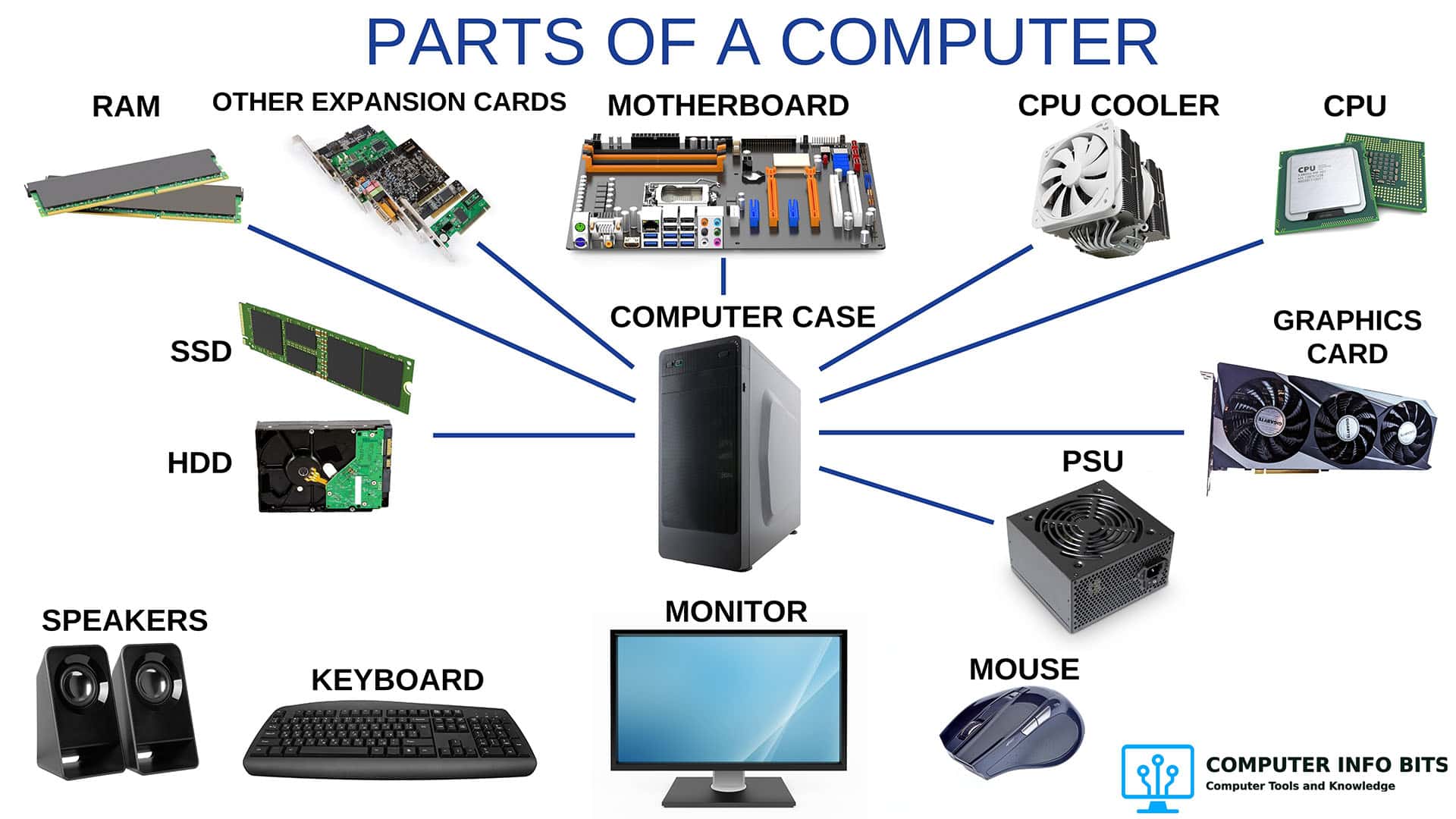
Parts of a Computer and Their Functions
Learn what each component inside a PC does and how they all work together.
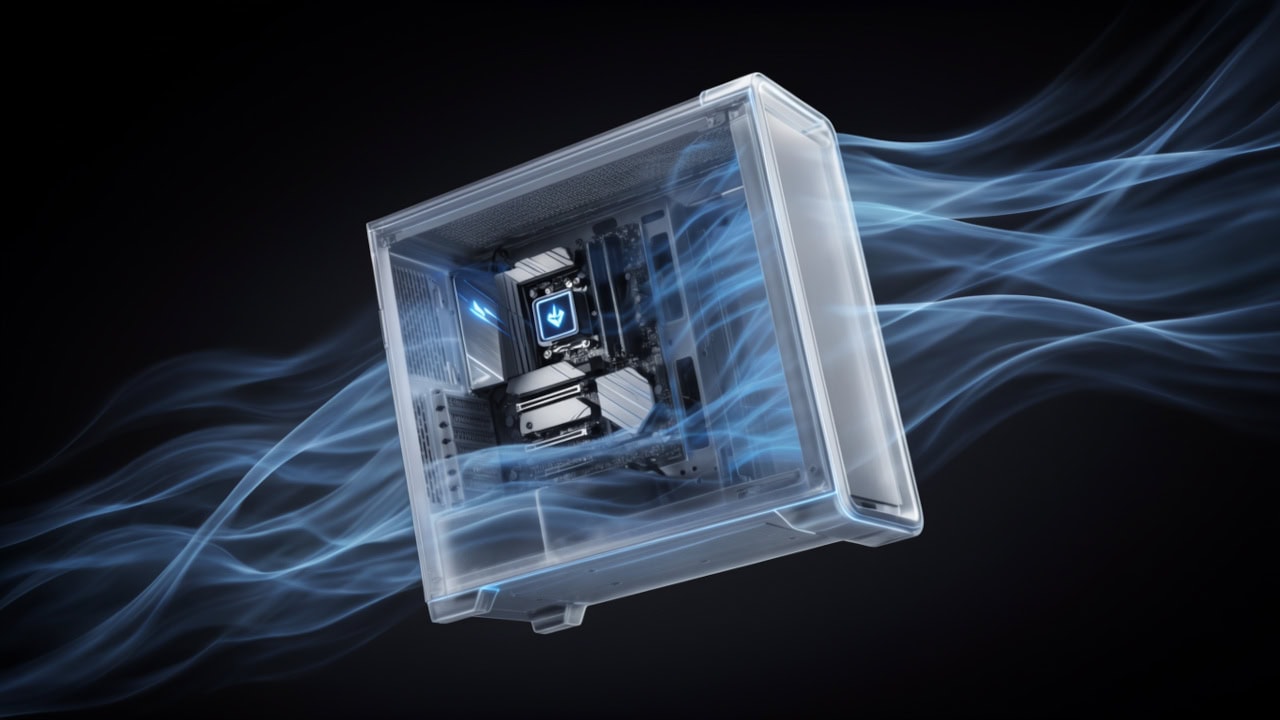
PC Airflow Optimization: How to Cool Your Computer
Set up your case fans correctly to keep temperatures low and reduce dust buildup.

Why Is My FPS Lower Than It Should Be?
Find out why a game runs below the frame rate you expected, starting with frame caps, power settings, and heat.
Find your PC information with CIB PC Reporter
Read hardware details, temperatures, drive health, and driver information in one clean, exportable report. It is free, with a standalone option that runs without installing.