
Does your gaming laptop die way too fast when you're not plugged in? You're not alone. Gaming laptops are power-hungry machines, but with a few smart tricks, you can squeeze out a lot more battery life. Whether you're on a road trip, at a coffee shop, or just away from an outlet, these tips will help you game longer.
Why Gaming Laptops Drain So Fast
Gaming laptops have powerful parts inside them. That's what makes them great for games, but it also means they use a lot of electricity. The graphics card (GPU) alone can use 40 to 80 watts when you're playing. The processor (CPU) adds another 15 to 45 watts on top of that.
When you add in the screen, memory, storage, and fans, a gaming laptop can use anywhere from 80 to 180 watts during gameplay. That's a lot. Most laptop batteries hold about 50 to 99 watt-hours of power. So if you do the math, heavy gaming can drain your battery in just one to two hours.
But here's the good news: with the right settings, you can stretch that to three or four hours for lighter games. And if you're just browsing the web or doing homework, you might get five to eight hours.
Gaming requires your laptop to draw millions of pixels on screen every second. Each frame in a game needs complex math to figure out lighting, shadows, and movement. All that work takes serious energy.
Change Your Windows Power Settings
Windows has built-in power settings that can make a big difference. Think of these as easy wins that take just a few clicks to set up.
- Turn on Battery Saver: This mode kicks in when your battery hits 20%. It slows things down a bit to save power. You can turn it on earlier if you want even more savings.
- Use the Balanced Power Plan: This setting gives you a good mix of speed and battery life. It's perfect for most gaming.
- Make Your Own Power Plan: You can create custom settings for different situations. Make one for gaming on battery and another for when you're plugged in.
- Let Windows Pause USB Devices: There's a setting called USB Selective Suspend that turns off USB ports you're not using. This saves power.
- Limit Your Processor Speed: In advanced power settings, you can cap your CPU at 80% when on battery. This saves a lot of power with only a small speed drop.
Keep in mind: Gaming on battery usually means 10 to 30% less performance than when plugged in. If you're playing a competitive game where every frame counts, you might want to find an outlet first.
Turn Down Your Screen
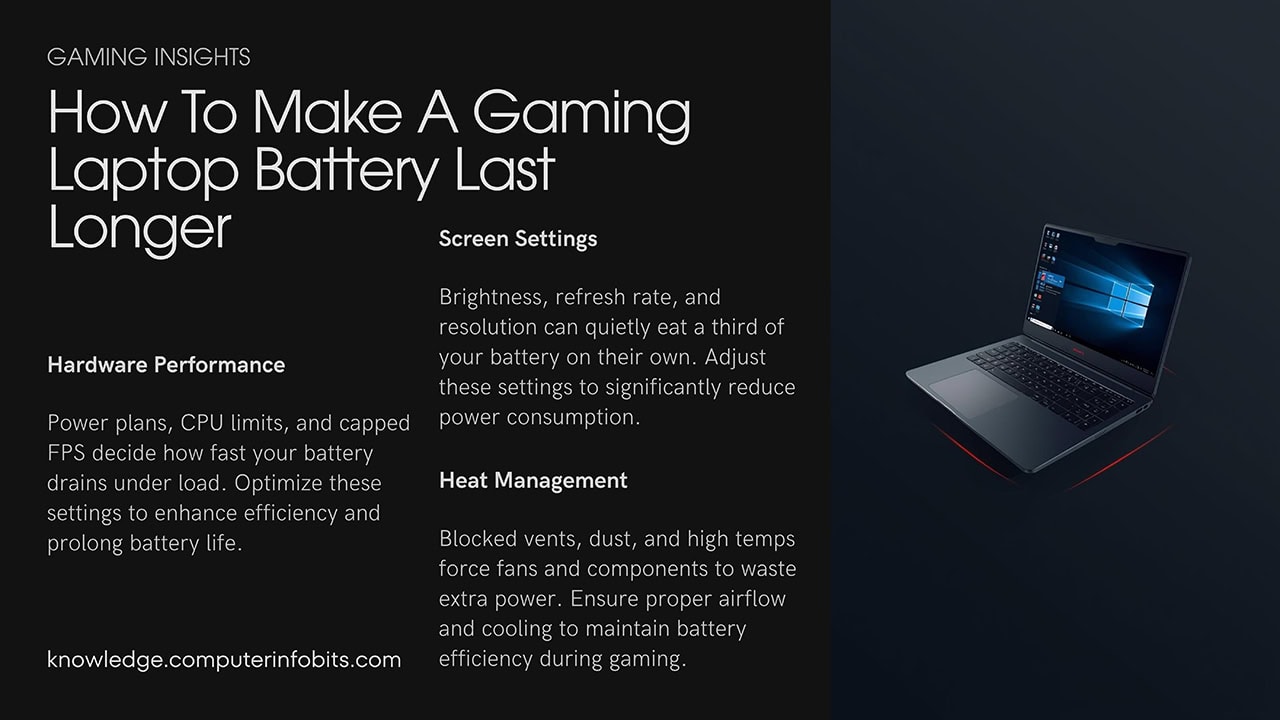
Your laptop screen is one of the biggest power users. It can eat up 25 to 40% of your total battery. Making some screen changes is one of the fastest ways to extend battery life.
Lower the Brightness
This is the easiest fix. Dropping your screen brightness from 100% to 50% can give you 15 to 25% more battery life. Most games look fine at 50 to 70% brightness when you're indoors. Your eyes adjust quickly, and you probably won't notice much difference after a few minutes.
Use a Lower Refresh Rate
Many gaming laptops have high refresh rate screens like 120Hz, 144Hz, or even 240Hz. These look super smooth, but they use more power. Switching from 144Hz down to 60Hz can save 10 to 20% battery life. You might notice games aren't quite as buttery smooth, but it's worth it when you need more playtime.
Play at a Lower Resolution
Running games at a lower resolution means your GPU doesn't have to work as hard. If your laptop has a 1440p screen, try playing at 1080p instead. You might save 20 to 30% battery life, and on a smaller laptop screen, you probably won't notice much difference in picture quality.
Close Apps You're Not Using
Background apps are sneaky power thieves. They sit there running even when you're not using them, and they can gobble up 10 to 30% of your computer's resources. Here's how to stop the drain:
- Open Task Manager: Press Ctrl + Shift + Esc before you start gaming. Close any apps you don't need. Things like web browsers, music apps, and chat programs all use power.
- Turn Off Startup Programs: Some apps start running as soon as you turn on your laptop. Go to Task Manager and click the Startup tab to disable ones you don't need.
- Use Windows Game Mode: This tells Windows to focus on your game and reduce other background stuff. You can find it in Settings under Gaming.
- Limit Background Apps: In Windows Settings, go to Privacy, then Background apps. Turn off apps you don't need running all the time.
Turn Off Wireless When You Don't Need It
Your laptop's Wi-Fi and Bluetooth are always looking for signals, even when you're not using them. They use 2 to 8 watts of power all the time.
Wi-Fi Tips
If you're playing an offline game, turn off Wi-Fi completely. This saves 3 to 5 watts. That might not sound like much, but over a few hours, it adds up. If you do need Wi-Fi for online games, try to sit closer to your router. A weak signal makes your laptop work harder to stay connected, which uses more battery.
Bluetooth Tips
Bluetooth usually uses 1 to 3 watts when it's on. If you're not using wireless headphones, a wireless mouse, or other Bluetooth devices, just turn it off. You can do this quickly by clicking the network icon in your taskbar.
Unplug Extra Devices
Every gadget plugged into your laptop draws a little bit of power. Here's what to think about:
- USB Devices: Unplug USB drives, external hard drives, or other accessories you're not using. Each one can use 0.5 to 2.5 watts.
- Keyboard Lights: Those cool RGB lights on your keyboard can use 2 to 5 watts. Turn them down or off when on battery.
- External Drives: If you can, use files stored on your laptop instead of external drives. External drives need extra power to spin up.
- Cooling Pads: Laptop cooling pads help with heat, but they use 5 to 15 watts. Skip them when you're trying to save battery.
- Speakers vs Headphones: Built-in speakers use 2 to 4 watts more than headphones. Plug in some earbuds to save a little power.
Keep Your Laptop Cool
When your laptop gets hot, the fans have to work harder. Harder-working fans mean more power used. Plus, when things get too hot, your laptop slows itself down to prevent damage. This is called thermal throttling, and it actually wastes power.
Use a Hard, Flat Surface
Never use your laptop on a bed, couch, or pillow. Soft surfaces block the vents underneath, and your laptop can get 10 to 15 degrees hotter. Always use a desk, table, or lap desk with a hard surface.
Clean Out the Dust
Dust builds up inside your laptop over time. It clogs the vents and makes everything run hotter. A dusty laptop might run 5 to 20 degrees warmer than a clean one. Every few months, use a can of compressed air to blow out the vents. This simple step can improve battery life by 5 to 10%.
Pro tip: You can check your laptop's temperature using free programs like HWiNFO64 or MSI Afterburner. If your CPU or GPU is hitting 80 degrees Celsius or higher during gaming, your laptop is probably throttling. Cleaning the vents or using a cooling pad (when plugged in) can help.
Change Your Game Settings
The settings inside your games make a huge difference in how much power your laptop uses. Here are the best settings to change:
- Shadows: Drop shadow quality from high or ultra to medium or low. This alone can save 10 to 20% battery.
- Anti-Aliasing: This smooths out jagged edges. Turn it off or use FXAA instead of MSAA. FXAA uses way less power.
- Textures: Use high instead of ultra. You'll barely see the difference on a laptop screen, but your GPU will work less hard.
- Frame Rate Cap: Limit your game to 60 frames per second. There's no point rendering more frames than you need, and it saves a ton of power.
- V-Sync: Turn on V-Sync or adaptive sync. This stops your GPU from making more frames than your screen can show.
Pick the Right Games
Not all games drain your battery the same way. Big action games with fancy graphics use way more power than simpler games. Strategy games, indie titles, and older games typically use 30 to 50% less power than the latest AAA releases. When you're gaming on battery, these lighter games will last much longer.
Advanced Tricks for Power Users
If you want to go even further, there are some advanced options. These take more work to set up, but they can give you big savings.
GPU Power Profiles
Programs like NVIDIA Control Panel or AMD Radeon Software let you create custom power profiles. You can tell your graphics card to run slower when you're on battery. This can save 20 to 40% battery life, and many games will still run fine.
CPU Undervolting
Undervolting your CPU means giving it less electricity while still running at the same speed. Tools like Intel XTU or ThrottleStop let you do this. You can save 10 to 20% power without losing any performance. But you need to test carefully to make sure your laptop stays stable.
Be careful: Undervolting and other tweaks can void your warranty if done wrong. They can also cause crashes if you push things too far. Always start with small changes and test everything. If you're not comfortable with this, skip it and stick with the easier tips.
Take Care of Your Battery
A healthy battery holds more power and lasts longer. Here's how to keep yours in good shape:
- Don't Always Charge to 100%: Keeping your battery between 40% and 80% helps it last longer. Some laptops have settings to stop charging at 80% automatically.
- Keep It Cool: Heat is bad for batteries. Try to keep your laptop under 35 degrees Celsius when charging.
- Store It Right: If you're putting your laptop away for a while, charge it to about 50% first. Don't store it fully charged or fully dead.
- Calibrate Monthly: Once a month, let your battery drain all the way down, then charge it back to 100%. This helps your laptop show the right battery percentage.
- Plan for Replacement: Most laptop batteries last 300 to 500 charge cycles before they start losing serious capacity. After a few years, you might need a new one.
- Mac Users: If you have a MacBook, you can set it to stop charging at 80% automatically in your settings.
Tools to Track Your Battery
Want to see exactly where your power is going? These free tools can help you figure out what's draining your battery the most:
- Windows Battery Report: Open a command prompt and type
powercfg /batteryreportto get a detailed report about your battery health and usage. - HWiNFO64: Shows real-time power usage for every part of your laptop. Great for seeing which components use the most power.
- BatteryInfoView: Tracks your battery health, charge cycles, and how much capacity you've lost over time.
- MSI Afterburner: Mainly for graphics cards, but it shows GPU power usage and lets you create power-saving profiles.
- ThrottleStop: An advanced tool for managing CPU power. It can also do undervolting if you want to get into that.
Putting It All Together
Getting more battery life isn't about doing just one thing. It's about combining lots of small changes. Start with the easy stuff like lowering brightness and closing extra apps. Then work your way up to things like changing game settings and power profiles.
The best part is you don't have to do everything at once. Try a few tips and see how much they help. Everyone's laptop and gaming habits are different, so what works best for you might be different from what works for someone else.
For more technical info about power management and laptop batteries, check out Intel's power management guide.