
Most gaming PCs and desktop computers don't have WiFi built in. Unlike laptops, desktop motherboards often skip wireless connectivity to keep costs down. To connect a gaming PC to WiFi, you need to add a wireless network adapter.
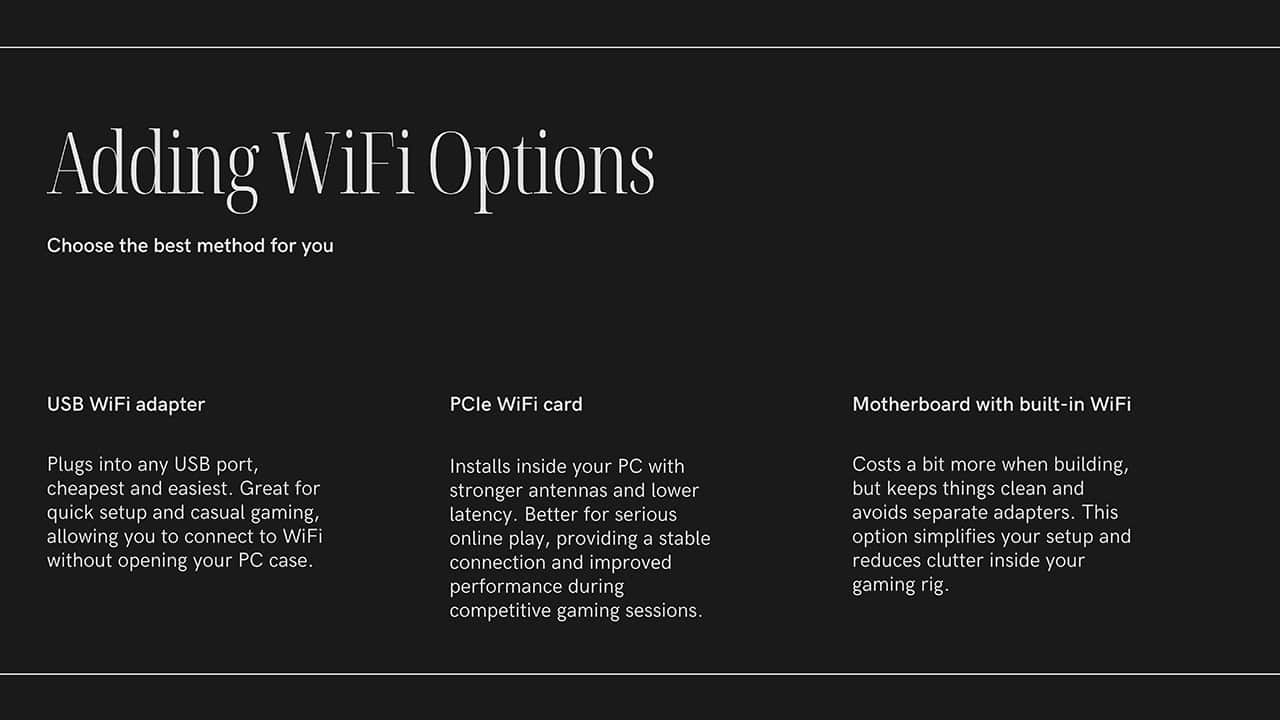
Three ways to add WiFi to a gaming PC:
- USB WiFi adapters ($15-40) plug into any USB port and work right away. Best for quick setup.
- PCIe WiFi cards ($25-80) install inside your computer. Best for signal strength and low latency.
- Built-in motherboard WiFi comes pre-installed on some motherboards, especially mid-range and higher models.
USB adapters are the simplest option since they don't require opening your PC. PCIe cards deliver better performance for online gaming because they connect directly to the motherboard and have larger antennas. If you're building a new system, choosing a motherboard with WiFi 6 built in adds about $20-40 to the cost but saves a separate purchase.
Check for Built-in WiFi First
Before you buy anything, check if your computer already has WiFi. Some gaming motherboards come with wireless internet built right in. Here's how to find out:
How to check for built-in WiFi:
- Look at the back of your computer. Do you see small antenna connectors or antennas sticking out? That means you have WiFi.
- On Windows, press the Windows key + A to open the quick settings panel.
- Look for a WiFi button. If you see one, your PC has wireless built in.
If you already have WiFi, connecting is simple. Click the WiFi icon in the bottom right corner of your screen, pick your home network from the list, type in your password, and you're done. If networks aren't showing up, try restarting your computer or checking if WiFi is turned on.
If you can use a wired connection, ethernet is usually more stable for gaming. Learn when dual ethernet ports matter in our guide on why motherboards have 2 ethernet ports.
If you need to move a driver download link from your phone to your PC, use our QR code generator.
USB WiFi Adapters: The Easiest Option
A USB WiFi adapter is the fastest way to add wireless internet to your gaming PC. These small devices look like flash drives and plug into any USB port on your computer. Most of them work right away without any complicated setup.
What to Look for When Buying
Not all USB WiFi adapters are the same. Here's what matters when you're shopping for one:
- WiFi 6 support: Look for adapters that support WiFi 6 (also called 802.11ax). These are the newest and fastest.
- Dual-band: Get one that works on both 2.4 GHz and 5 GHz networks. The 5 GHz band is faster and works better for gaming.
- External antenna: Adapters with antennas sticking out usually get a stronger signal than tiny ones.
- USB 3.0: Plug it into a blue USB 3.0 port for the best speeds. These ports are faster than older USB 2.0 ports.
How to Set Up a USB WiFi Adapter
- Plug the adapter into a USB port on your computer.
- Wait a few seconds. Windows will usually find and install the right software automatically.
- If it doesn't work right away, use the CD or download drivers from the company's website.
- Click the WiFi icon on your taskbar and connect to your network.
PCIe WiFi Cards: Best for Serious Gamers
PCIe cards are better for gaming because they have stronger antennas and less lag. USB adapters work fine for casual gaming and are easier to set up. If you play fast-paced games like shooters where every millisecond counts, go with a PCIe card or use a wired Ethernet cable.
A PCIe WiFi card goes inside your computer and connects directly to your motherboard. These cards give you the strongest wireless signal and the fastest speeds. They're a great choice if you want the best WiFi experience for online gaming.
How to Install a PCIe WiFi Card
Installing a WiFi card inside your PC takes a little more work than plugging in a USB adapter, but it's not hard. Here's how to do it:
- Turn off your computer completely and unplug the power cable.
- Take off the side panel of your PC case (usually held by screws or clips).
- Find an empty PCIe slot on your motherboard. These are long slots, and any size will work.
- Remove the metal cover from the back of your case that lines up with the slot.
- Push the WiFi card into the slot until it clicks into place.
- Use a screw to hold the card in place.
- Screw the antennas onto the back of the card.
- Put your case back together and turn on your computer.
- Install the drivers from the included disc or the manufacturer's website.
Safety tip: Before touching anything inside your computer, touch a metal part of the case first. This gets rid of static electricity that could damage your parts.
Why PCIe Cards Work Better
PCIe WiFi cards connect straight to your motherboard, which means they don't have to share space with other USB devices. This gives you faster speeds and less lag when gaming. The antennas on these cards are also bigger and stronger than those on USB adapters, so you'll get a better signal even if your router is far away.
Does WiFi Work Well for Gaming?
You might be wondering if WiFi is good enough for gaming. The short answer is yes, for most people. WiFi has gotten much better over the years, and modern wireless connections work great for playing games online.
The main difference between WiFi and a wired Ethernet cable is something called latency, or ping. This is how long it takes for your computer to send and receive signals. Lower numbers are better. Here's how different connection types compare:
Latency comparison (lower is better):
- Ethernet cable: 1-5 ms (fastest)
- WiFi 6 (PCIe card): 3-10 ms
- WiFi 5: 5-15 ms
- USB WiFi adapter: 10-25 ms
For most games, you won't notice the difference. WiFi works great for games like Fortnite, Minecraft, Roblox, and most other popular titles. If you're playing games where every split second matters, like competitive shooters, a wired connection is still the best choice.
Want to know what internet speed you need for gaming? Check out our internet speed calculator to find out.
Tips to Make Your WiFi Faster for Gaming
Once you have WiFi set up, there are some easy things you can do to make it work better. Where you put your router makes a big difference in how strong your signal is.
Where to Put Your Router
- Put your router up high, like on a shelf. Don't leave it on the floor.
- Keep it out in the open. Don't hide it in a cabinet or behind your TV.
- Move it away from microwaves and baby monitors. These can mess with the signal.
- Try to put it in the middle of your home so the signal reaches everywhere.
Pick the Right Network
Most routers have two networks you can connect to. One uses 2.4 GHz and the other uses 5 GHz. For gaming, always pick the 5 GHz network if you can. It's faster and doesn't get slowed down by other devices as easily.
Pro tip: If your internet feels slow when other people are streaming videos or downloading files, check your router settings for something called "QoS" or "Gaming Mode." This lets you tell your router to give your gaming PC priority over other devices.
Fixing Common WiFi Problems
Sometimes WiFi doesn't work the way it should. Here are some common problems and how to fix them.
WiFi Adapter Not Working
If your computer doesn't see your new WiFi adapter, you might need to install drivers. Drivers are small programs that help Windows talk to your hardware. Go to the company's website (like TP-Link, ASUS, or Netgear) and download the driver for your exact adapter model.
Slow or Laggy Connection
If your WiFi feels slow or your games are laggy, try these fixes:
- Move closer to your router.
- Switch to the 5 GHz network instead of 2.4 GHz.
- Make sure other people aren't downloading big files or streaming in 4K at the same time.
- Restart your router by unplugging it for 30 seconds.
Weak Signal
If your WiFi signal is weak, your computer might be too far from the router. You have a few options. Move your gaming setup closer to the router if you can. Get a WiFi adapter with bigger antennas for a stronger signal. Or ask your parents about getting a WiFi extender, which boosts the signal to reach farther parts of your home.
Which Option Should You Pick?
Now you know the three main ways to add WiFi to your gaming PC. But which one is right for you? Here's a quick guide:
Choose a USB adapter if:
- You want something quick and easy
- You're on a tight budget
- You don't want to open your computer
Choose a PCIe card if:
- You want the best wireless speeds
- You play a lot of online games
- You're comfortable working inside your PC
If you're building a brand new gaming PC, look for a motherboard that already has WiFi 6 built in. It usually only costs about $20-40 more, and you won't have to buy a separate adapter.
WiFi keeps getting better every year. The newest standards like WiFi 6E and WiFi 7 are faster than ever, with less lag for gaming. No matter which option you pick, you'll be able to enjoy online gaming without running cables through your house.