
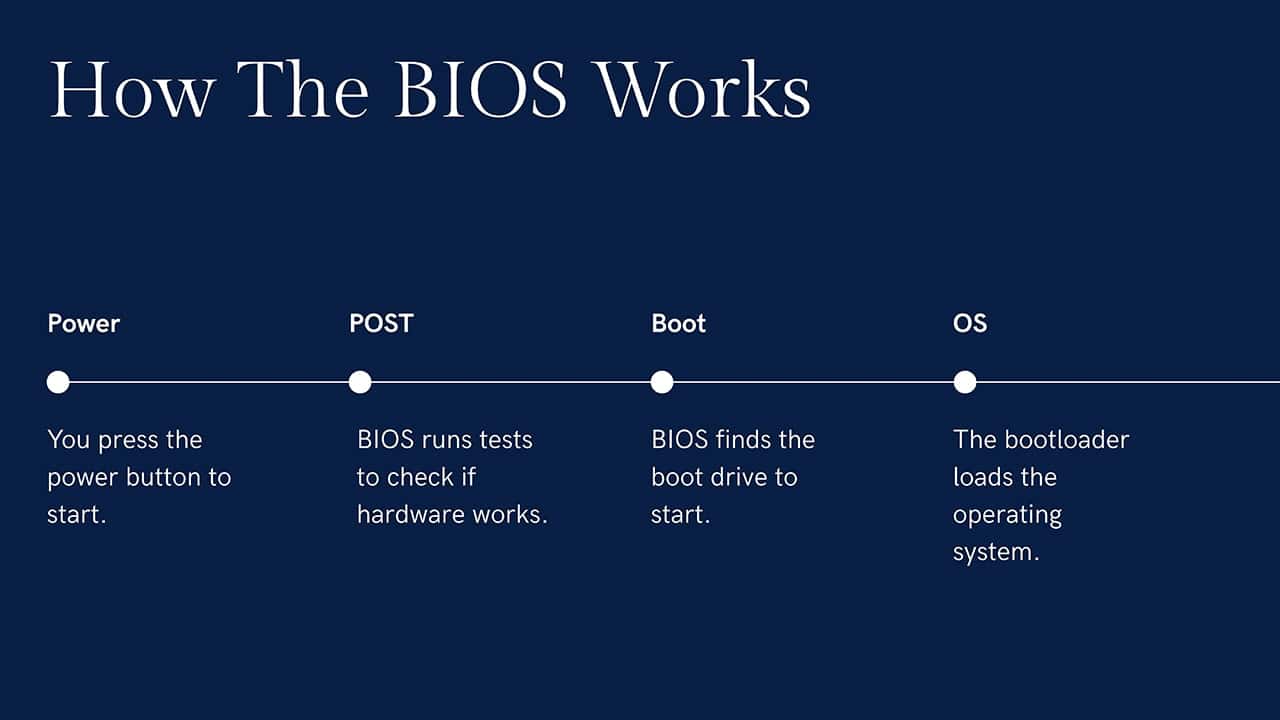
What is BIOS? When you turn on your computer, the BIOS (Basic Input/Output System) is the first thing that runs. It checks that all your computer parts are working, then loads Windows, macOS, or whatever operating system you use. If you want to fix startup problems or make your PC run better, knowing how the BIOS works is really helpful.
BIOS is a type of firmware stored on your motherboard. It runs a hardware check called POST, then helps start your operating system. Most new computers use UEFI instead of the older BIOS. UEFI does the same job but boots faster and has more features.
Those beeps are actually your BIOS trying to talk to you! When your computer starts up, it runs a test called POST to check if everything works. But here's the problem: if something is broken, the screen might not work yet.
So how does it tell you something is wrong? It uses beep codes! Different beep patterns mean different problems. For example, one long beep and two short beeps usually means your graphics card isn't working. If it keeps beeping over and over, you might have a RAM problem. Think of it like Morse code for computers.
What is BIOS?
BIOS stands for Basic Input/Output System. It's a small program that lives on a chip on your motherboard. This chip gives your computer the first set of instructions it needs when you press the power button.
Here's what makes BIOS different from other programs: it's not saved on your hard drive or SSD. Instead, it's built into a special ROM chip that remembers everything even when your computer is completely off.
What Does the BIOS Do? (7 Main Functions)
Your computer's BIOS handles many important jobs. Here are the seven main things it does every time you start your computer:
1 POST (Power-On Self-Test)
The first thing BIOS does is run a test called POST. This stands for Power-On Self-Test. It checks that your most important hardware is working:
- Your CPU (the computer's brain)
- Your RAM (fast temporary memory)
- Your hard drive or SSD
- Your graphics card
If POST finds a problem, the BIOS stops everything and shows an error message. If your screen isn't working yet, it uses beep codes instead.
2 Bootstrap Loader
After POST passes, the BIOS needs to start your operating system. It uses something called a bootstrap loader to do this.
The bootstrap loader looks at your hard drive or SSD, finds Windows (or whatever system you use), and tells it to start loading. Without this step, your computer would just sit there with a blank screen.
3 BIOS Setup Utility
The BIOS has a settings menu you can open. To get there, you press a key like F2, Delete, or Esc right when your computer starts. This menu lets you change things like:
- Boot order - Pick which drive loads first (helpful when installing Windows from a USB)
- Clock speeds - Make your CPU or RAM run faster
- Voltage settings - Give parts more or less power
- Turn devices on/off - Enable or disable things like onboard audio
4 CMOS Settings Storage
When you change settings in the BIOS, where do they get saved? They go into a tiny bit of memory called CMOS.
The CMOS needs a small battery to keep running when your PC is off. If this battery dies, your computer will forget all its BIOS settings. You'll notice the clock is wrong every time you turn on your computer - that's usually the first sign of a dead CMOS battery.
5 Hardware Management
Before Windows or macOS loads, something needs to let your keyboard and mouse work. That's another BIOS job!
The BIOS includes basic drivers that let your CPU talk to devices like your keyboard, mouse, and storage drives. Once your operating system finishes loading, it takes over with its own drivers.
6 Security Features
Modern BIOS includes ways to keep your computer safe:
- Password protection - You can set a password that someone must type before the computer will start
- Secure Boot - This makes sure only trusted software can load. It blocks viruses that try to start before Windows
7 Overclocking Options
Want to make your CPU or graphics card run faster? Many BIOS versions let you do overclocking.
This can give you better performance in games and other demanding programs. But be careful - pushing parts too hard can make them overheat. If you try overclocking, watch your temperatures closely.
Legacy BIOS vs UEFI: What's the Difference?
If you've bought a computer in the last several years, it probably uses UEFI instead of the old-style BIOS. UEFI stands for Unified Extensible Firmware Interface. It does the same basic job as BIOS, but better.
| Feature | Legacy BIOS | UEFI |
|---|---|---|
| Boot speed | Slower startup | Faster startup |
| Hard drive size | Up to 2TB only | Works with huge drives (9+ TB) |
| Interface look | Text-only, keyboard navigation | Graphical with mouse support |
| Security | Basic protection | Secure Boot and more options |
Even though most computers now use UEFI, people still call it "the BIOS." So when someone says "go into your BIOS settings," they usually mean the UEFI setup screen.
Why is the BIOS So Important?
Without the BIOS or UEFI, your computer couldn't do anything. It wouldn't know how to start Windows, talk to your keyboard, or find your hard drive. The BIOS is like the first responder that shows up before anyone else, making sure everything is ready.
Key Reasons Your Computer Needs BIOS
- It checks that all your hardware works before loading Windows
- It tells your computer where to find the operating system
- It lets you change settings like boot order and clock speeds
- It provides security through passwords and Secure Boot
- It keeps your settings saved even when the power is off
Updating Your BIOS (Flashing)
Most of the time, you don't need to update your BIOS. It works fine as is. But sometimes you might need a BIOS update to:
- Make a new CPU work with your motherboard
- Fix bugs or stability problems
- Add new features
Be Careful: Updating the BIOS can be risky. If something goes wrong during the update - like a power outage - your computer might not start at all. Always follow the instructions from your motherboard maker exactly. Save your current BIOS settings before you start, just in case.
Common BIOS Problems and How to Fix Them
Sometimes things go wrong with the BIOS. Here are the most common problems you might run into:
Your computer keeps forgetting the date and time. Your BIOS settings reset every time you turn off the PC. The fix is usually simple - replace the small coin-shaped battery on your motherboard.
Your computer won't start at all, or it crashes randomly. This is more serious. Some motherboards have a backup BIOS chip. Others need a special recovery process from the manufacturer.
You see "No bootable device found" or similar errors. The BIOS is looking for Windows on the wrong drive. Go into BIOS setup and make sure your main hard drive or SSD is first in the boot order.
You installed a new CPU or RAM, but your computer won't start. Your BIOS might be too old to recognize the new parts. You may need a BIOS update, but you'll need to put the old parts back in first to do it.
Wrapping Up
The BIOS is one of those things you don't think about until something goes wrong. But now you know what it does! Every time you press the power button, the BIOS runs its tests, finds your operating system, and gets everything started.
Whether you have an older computer with traditional BIOS or a newer one with UEFI, understanding how this firmware works helps you fix problems and get the most out of your PC. From changing your boot order to enabling Secure Boot, the BIOS gives you control over how your computer starts up.
Want to learn more about how computers work? Check out our guides on the parts of a computer and how motherboards work.