Understanding the BIOS and Its Main Functions
By Marlo Strydom · Last updated
Understanding the BIOS and its main functions becomes simple when you follow what happens after pressing the power button. Before Windows or another operating system can open, the motherboard firmware prepares the connected hardware components, checks for startup problems, reads saved settings, chooses a boot device, and starts the operating system loader.
The Four Main Functions of a BIOS
- Check hardware: POST looks for problems that could stop startup.
- Read settings: Firmware uses the saved boot order and device options.
- Start the operating system: It runs the OS loader on the chosen drive.
- Offer setup and security: The firmware menu lets you change settings and manage startup protection.
What Is a BIOS?
BIOS stands for Basic Input/Output System. It is firmware stored on a memory chip on the motherboard, not an app saved on a hard drive or SSD. This lets it run before the computer has found an operating system.
Modern PCs use UEFI firmware instead of the older BIOS interface. UEFI controls the same early startup stage, so computer makers and users often continue to call it BIOS.
What System BIOS Means
The system BIOS is the main firmware for the whole computer. It is different from device firmware that controls one part, such as a storage drive or network adapter. Microsoft's firmware update guidance makes the same distinction. The term does not describe a separate type of BIOS.
How Each BIOS Function Works
A computer's BIOS or UEFI firmware has four main jobs around the startup process. Some run automatically, while the setup and security controls are available when needed.
1. Check and Initialize the Hardware
The firmware first prepares the CPU, memory, storage, and graphics hardware needed for startup. It then runs POST, or Power-On Self-Test, to check for a problem that could stop the computer from starting.
- CPU: Confirms that the processor can begin running instructions.
- RAM: Checks that working memory is present and usable.
- Storage: Detects drives that may contain an operating system.
- Graphics: Prepares a display device so startup information can appear.
If POST finds a problem, startup may stop and show an error. When the display cannot show the problem, some computers use beep codes or motherboard diagnostic lights. POST does not need Windows because it runs from the firmware.
2. Read the Saved Firmware Settings
Firmware reads settings stored on the motherboard, including the boot order, enabled devices, security choices, and memory profiles. These are often called CMOS settings. A coin-cell battery keeps the computer's clock running while power is disconnected, and a weak battery can cause the time or saved settings to reset. Intel lists these signs in its board battery guidance.
3. Choose a Boot Device and Start the Operating System
After the hardware checks pass, firmware follows the saved boot order. On a UEFI computer, the firmware boot manager starts an operating system boot application from the selected drive. The operating system then takes control and eventually shows its sign-in screen, which you can skip by setting up auto login on Windows 11.
4. Provide Setup and Security Controls
The setup utility lets you change firmware settings before the operating system loads. Modern firmware can also provide security controls:
- Password protection: A system password can stop startup, while an administrator password can protect the setup screen.
- Secure Boot: Checks the digital signature of the operating system loader before allowing it to run.
- TPM support: Helps record startup measurements and protect cryptographic keys.
- Drive encryption support: BitLocker can use the TPM to unlock a protected Windows drive during startup.
Legacy BIOS vs UEFI
Legacy BIOS and UEFI both prepare hardware and start an operating system, but they use different boot methods and disk layouts. UEFI is the modern standard used by current PCs.
| Feature | Legacy BIOS | UEFI |
|---|---|---|
| Boot method | Loads boot code from the selected device | Uses firmware boot entries and an EFI boot application |
| Common partition style | MBR | GPT |
| Large boot drives | MBR normally limits a boot drive to about 2 TB | GPT supports boot drives larger than 2 TB |
| Security | Does not provide UEFI Secure Boot | Can support Secure Boot |
| Setup interface | Usually a keyboard-driven text menu | May use a text or graphical menu |
Do not switch firmware modes without checking how the operating system was installed. Windows normally continues using the firmware mode used during installation.


Related Posts
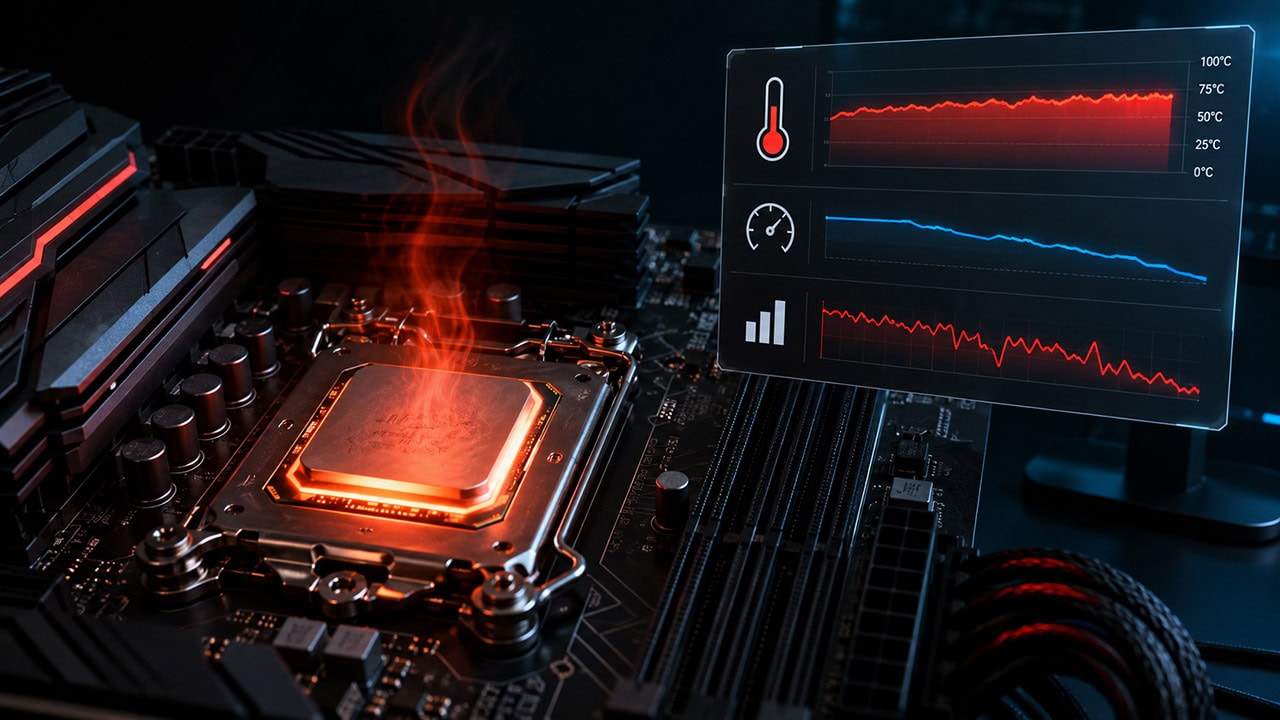
How to Know If Your CPU Is Thermal Throttling
Spot the signs of a CPU slowed by heat, confirm it with HWiNFO64, and learn the Intel and AMD limits that trigger it.
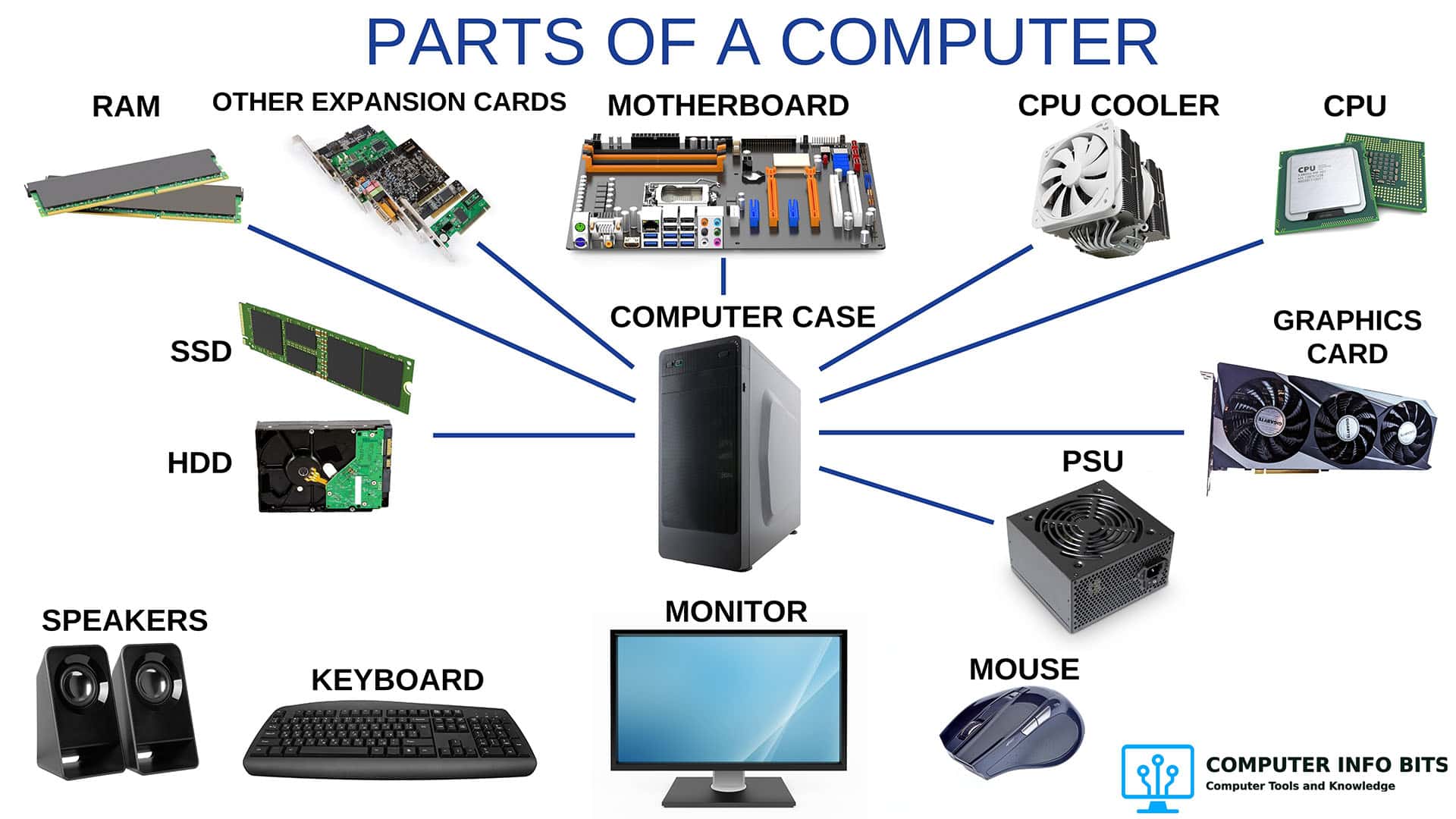
Parts of a Computer and Their Functions
A complete breakdown of every major PC component, including the CPU, RAM, GPU, and storage.
PC Airflow Optimization: How to Cool Your Computer
Set up your case fans correctly to keep temperatures low and reduce dust buildup.
How to Set Up Windows Auto Login
The next step after the BIOS hands off to Windows: skip the sign-in screen and boot straight to the desktop.