How to Check If a GPU Is Working Properly
By Marlo Strydom · Last updated


How to Check If a GPU Is Working Properly comes down to four checks: Windows detects the card, the intended GPU handles a graphics workload, a repeatable benchmark finishes without artifacts or crashes, and its score is close to results from comparable systems.
Passing all four checks means the GPU is working under the conditions you tested. One failed check does not prove the card is faulty. A display cable, driver, power connection, unstable setting, heat, or another component can create the same symptoms. The ASUS graphics card troubleshooting process also starts with the display path, card installation, power, and drivers before treating the GPU as defective.
1. Confirm Windows Detects the GPU
- Open Device Manager: Right-click Start, select Device Manager, and expand Display adapters.
- Check the device status: Double-click the GPU and read the message on the General tab. Microsoft explains where to find and resolve Device Manager error codes.
- Check the driver name: If Windows lists Microsoft Basic Display Adapter instead of the GPU model, install the correct driver. Microsoft explains that the basic display adapter is a generic driver with limited features.
- Rule out the display path: If there is no picture, select the correct monitor input and try another cable, GPU output, or monitor before opening the computer.
- Check the card only when needed: Shut down and unplug a desktop PC before checking whether the GPU is seated and its required power plugs are secure. These are part of the ASUS no-display checks.
Pass: Windows shows the correct GPU model without an error. On a desktop, the display should also work through an output on the graphics card. Some laptops use hybrid graphics that let the dedicated GPU render the workload while integrated graphics handles the display, as explained in NVIDIA's Optimus overview. On those laptops, use the workload check below instead of the display connection as pass-or-fail evidence.
2. Confirm the Intended GPU Is Active
A computer can list a GPU without using it for the program you care about. Task Manager shows which graphics processor and engine receive the work. Microsoft's Task Manager GPU guide explains why 3D, video, copy, and compute workloads may appear on different graphs.
- Find the GPU numbers: Press Ctrl + Shift + Esc, select Performance, and note the model beside GPU 0, GPU 1, or each later number.
- Start a useful workload: Open a game, 3D program, or another task that should use the graphics card.
- Watch the matching engine: Select the intended GPU in Task Manager. Click a graph name if you need to switch between 3D, Video Decode, Compute, or another engine.
- Check the program itself: On the Processes tab, enable the GPU and GPU engine columns. The GPU engine entry shows which GPU number is handling that program.
- Choose the dedicated card if needed: In Windows 11, open Settings, System, Display, and Graphics. Select the program, choose Options, and select High performance. Microsoft documents these per-program graphics preferences.
Pass: The intended GPU's graph changes while the program runs, and the GPU engine column points to that card. Do not use one fixed utilization percentage as a pass mark. Light workloads, frame limits, and other system limits can leave the GPU below full use.
3. How to Check If GPU Fans Are Working
A stopped fan does not automatically mean the graphics card is faulty. Some cards keep their fans off at low temperature and start them only after the GPU warms up. ASUS describes this behavior in its zero-RPM fan guidance, but the exact start point depends on the card.
- Check the card's fan mode: Look up the exact model on the card maker's support page and check whether it uses a zero-RPM or passive mode.
- Start a graphics workload: Run a game or benchmark that makes the GPU warm up. Keep your hands and loose items away from the fans while the computer is running.
- Watch every fan: Look through the side of the case and confirm each installed GPU fan begins turning as the card warms. A flashlight can help, but do not touch or stop a moving fan.
- Listen for a fault: Grinding or scraping can point to a blocked or damaged fan. MSI's fan noise guide recommends checking for cables, damaged blades, foreign objects, and dust. Repeated stopping and starting near a zero-RPM threshold can be normal, so judge the fans under a steady warm load.
- Stop if cooling does not respond: End the workload if the GPU keeps getting hotter while its fans remain stopped. Shut down the computer before checking for a cable, object, or heavy dust blocking a fan.
Pass: The fans respond when the card reaches its model-specific start point, turn without obstruction or harsh mechanical noise, and help the temperature settle under a steady load. A fan that stays off while the GPU is cool is not a failure by itself.
4. Run One Repeatable GPU Test
Use one benchmark to check performance and stability without switching among several tools. Open 3DMark and run the test recommended on its Home screen. UL explains that each test is designed for a different class of hardware in its benchmark selection guide. Before testing, return GPU, CPU, and memory tuning to factory settings. AMD recommends a fully updated system at factory-recommended settings when isolating stability problems.
- Close heavy background programs: Keep the test conditions simple and repeatable.
- Keep the recommended default settings: Do not change the resolution, quality preset, or workload. UL Benchmarks warns that scores from different tests or custom settings should not be compared directly.
- Watch the run: Look for corrupted shapes or colors, a driver reset, a black screen, a program crash, or a computer restart.
- Check cooling behavior: Record the highest temperature and confirm it settles instead of continuing to rise. ASUS includes GPU temperature and case ventilation in its graphics card troubleshooting steps. If the computer struggles to supply cool air, use our PC airflow optimization guide to check the case fan layout and airflow path.
- Compare the result: Use the same benchmark's comparison for systems with the same CPU and GPU. UL explains that a score near the average indicates normal performance, while a result well below the average can point to a configuration or hardware problem in its 3DMark score guide.
Stop the test if the temperature keeps climbing while the fans do not respond, you smell something burning, or the computer repeatedly loses power. Shut down and unplug a desktop before checking internal connections.
5. Interpret the Result
Read the checks together. Each result answers a different question, so a single green message in Windows or one completed game does not prove every part of the GPU is healthy.
| Result | What It Means | Next Step |
|---|---|---|
| Pass | Windows detects the correct card, the intended GPU handles the workload, and the benchmark finishes cleanly near comparable results. | The GPU is working properly under the tested conditions. |
| Inconclusive | The card is detected, but the wrong GPU runs the program, the score is low, or one workload crashes. | Check settings, drivers, power, cooling, and other system parts before blaming the card. |
| Likely fault | The same artifacts or crashes repeat at factory settings in different workloads and follow the card into a known-working computer. | Stop using the failing test and contact the card maker or a repair technician. |
Important limit: A pass describes the tests you completed. Intermittent faults can appear only in a certain game, output port, video engine, or memory workload, so keep a record if a specific problem returns.
6. Isolate a Failed Check
Change one thing at a time and repeat the same test. AMD's system stability checklist recommends recording results, using factory settings, checking power and cooling, and cross-testing with known-working hardware when possible.
- Make the failure repeat: Record the program, action, and symptom. A problem that occurs in only one game may belong to that game or its driver profile.
- Use factory settings: Remove GPU, CPU, and memory overclocks or undervolts before testing again.
- Check the driver: Update Windows and install the graphics driver from the GPU or computer maker. If the problem began with a new driver, check its release notes and try the last version that worked. Microsoft provides supported driver update and reinstall steps.
- Check power and installation: With a desktop shut down and unplugged, confirm the card is seated and each required power plug is secure. Remove a PCIe riser cable for testing when a direct motherboard connection is possible. AMD includes these steps in its hardware isolation guidance.
- Cross-test the hardware: Test the suspected GPU in a suitable known-working PC, or install a known-working GPU in this computer. If the problem follows the suspected card, the card is likely faulty. If both cards fail in this PC, investigate the power supply, memory, motherboard, and software. If processor stability is also in doubt, follow the separate steps to check whether the CPU is working properly.
Keep the inspection simple: Do not remove the GPU cooler or replace thermal pads as part of an initial health check. Check the card maker's warranty and service instructions before disassembling the card.
7. GPU Symptom Guide
| Symptom | Useful Next Check |
|---|---|
| No display | Try another input, cable, GPU output, and monitor. Then check card seating and power using the ASUS no-display process. |
| Yellow icon or error code | Open the GPU's Device Manager properties and follow Microsoft's resolution for that device error code. |
| Fans stopped at the desktop | Test under load before judging them. Some cards use zero-RPM fan control at low temperature. |
| Artifacts, black screen, or crash under load | Return to factory settings, update or roll back the driver, watch cooling, and repeat the same test. Cross-test if the problem appears in more than one workload. |
| Unexpected restart or power loss | Check GPU power plugs and confirm the power supply meets the system requirements. AMD includes both checks in its stability troubleshooting guidance. |
| Low benchmark score | Confirm the intended GPU ran the test, use default benchmark settings, close heavy background work, and compare with the same CPU and GPU combination in the 3DMark result chart. |
If detection, workload, and benchmark checks all pass, report that the GPU is working properly under the tested conditions. If a repeatable fault follows the card into another suitable computer, stop testing and contact the card maker or a repair technician.
Prefer to watch? Use our video version of the GPU check alongside the steps above.
Related Posts
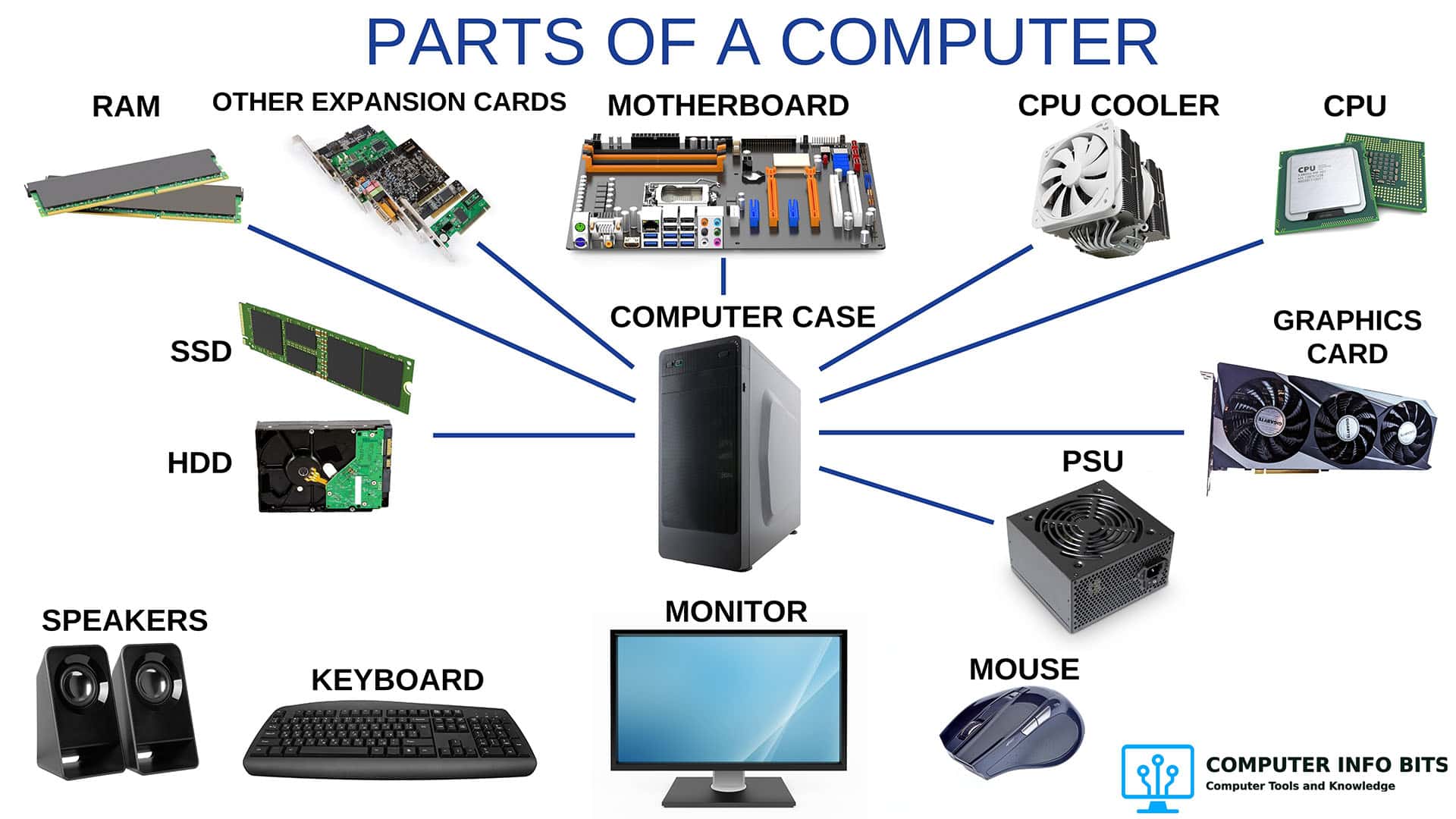
Parts of a Computer and Their Functions
A complete breakdown of every major PC component including the CPU, RAM, GPU, storage, PSU, cooling, and connectivity.
How to Know If Your CPU Is Thermal Throttling
Spot the signs of a CPU slowed by heat, confirm it with HWiNFO64, and learn the Intel and AMD limits that trigger it.
How Much Energy Do Gaming Computers Use?
The graphics card is the biggest power draw in the build. What a gaming PC costs to run per year, and the changes that bring the number down.